Table of Contents
Intro
eMule is a freeware P2P, standalone, application client connecting to both the eDonkey Network and Kad Network. Visit eMule homepage.
The eMule plugin is a modded version of the client, made into a plugin for BitComet. Thus through this plugin BitComet enables cross-protocol and cross P2P-networks download and file-sharing.
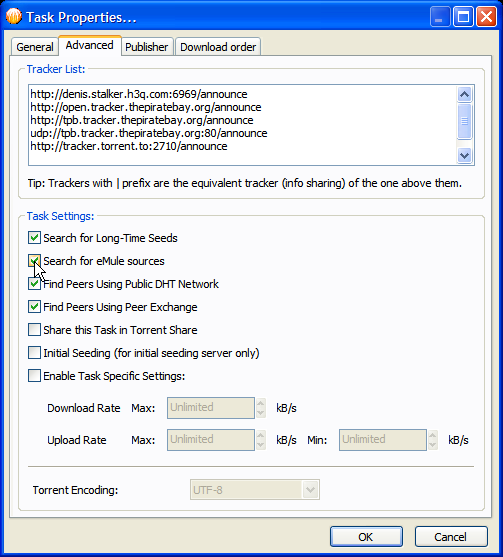
Once the plugin is installed and enabled in BitComet's options, if you check the “Search for eMule sources” check-box on the properties page of the task, when you add a torrent in BitComet, it will automatically search for that resource in the eDonkey and Kad networks, too. Once the resource is found, BitComet will concurrently download from all available sources (BitTorrent, eMule and Kad peers) into the same file(s). BitComet will also upload the content when requested, to the eDonkey and Kad networks through eMule plugin, thus enabling true cross-protocol file-sharing. Although eMule is installed as a plugin for BitComet it can also be used as a standalone client (either by clicking the “Show eMule plugin” button on the Options page or by simply starting the executable file) in order to seek and retrieve files from the eDonkey Network.
There are 2 ways how a BitTorrent task can have support for downloading from the eDonkey & Kad Networks:
- For torrents created with BitComet, if at the creation time of the .torrent file the option “Calculate ED2K link for each file” was enabled (which is its default state) then an “ed2k” key containing an 128 bit eMule hash will be calculated and included into the info dictionary of the .torrent file, for each file of the torrent. (See Torrent file format.)
That way, any BitComet peer when decoding the .torrent file will also learn the eMule hashes for each file and thus will be able to search for those files into the eDonkey/Kad Networks. - For torrents created with other torrent maker applications, as soon as the first BitComet peer from a swarm will finish downloading the torrent, it will calculate the eMule hashes for each file of the torrent and make them available to other BitComet peers who may be searching for eDonkey links for that torrent, through the DHT Network. From that point on, every BitComet peer of the swarm should be able to search the DHT Network and retrieve the ED2K links for that task and then search for those files into the eDonkey/Kad Networks, as well.
“One advantage of eMule is a large user base, currently averaging 3 to 4 million people, which share some 4 billion files, which makes it excellent for finding rare content”1). Downloads from the eDonkey Network are usually slower than those in the BitTorrent Network, however for torrents which have no longer any seeds, sometimes eMule might prove to be the useful aid in finishing the download of those rare torrents you found so hard on some site.
Nowadays the eMule Xtreme mod is getting increasingly popular and it also can be used as an alternative eMule plug-in in BitComet. But what is Xtreme mod and what's the difference between it and standard eMule?
According to the Xtreme mod homepage (follow the link after “What is Xtreme Mod ?”): “eMule Xtreme is a modification of the original eMule file-sharing client. It is its aim to use the bandwidth more efficiently and to enlarge the range of functions. We have paid special attention to create a stable, resource saving mod.” The Comparison of eDonkey software can be found on Wikipedia, and the changelog can be viewed here.
The main features2) of Xtreme mod are:
- Maella Bandwidth control, calculates the real Overhead
- NAFC (network adapter feedback control)
- advanced Upload bandwidth throttler with adjustable slot speed
- Xtreme Download manager for a clever source-handling
- Improved Xtreme-Credit system
- Power release with dynamic Hide OS
- IP to country - show country-flags
- Dynamic Leecher Protection (DLP)
- Multi-threaded disc access with threading-queue
eMule plugin installation tutorial
- Download URL: http://www.bitcomet.com/doc/download-achive.htm 【BitComet_X.XX_plugin.exe is the eMule plugin installation package】
- You can uninstall the eMule plug-in by simply deleting the “plugin_emule” folder within the BitComet program files folder.
For Bitcomet 1.10 and older versions, if you install ED plugin, please make sure the ED plugin has the same version with Bitcomet. Or you will be given warning if the two have different versions. For 1.10 and above, BitComet can be compatible with ED plugin V1.06 and above. But it's recommended to use the latest ED version.
- <html><span style=color:RoyalBlue>Tip:</span></html> click the install package BitComet_X.XX_plugin.exe and it will begin to install. Please note to select BitComet installation directory as the directory of eMule plugin.【eMule plugin has to be installed under the BitComet installation directory】
When the installation is finished, in Options -> eMule (ED task in olders versions), you will find information about the eMule plugin version and whether the version is compatible with the current BitComet Version.

<html><br /></html>
- Start eMule Plugin: as shown in the above image, check the option “Enable eMule Plugin”.
<html><span style=color:Teal>Note:</span></html> Choosing a random port as the listen port for eMule plugin is OK but please make sure this listen port is different from the listen port set for BitComet at “Options→ Connection”. If you add Port Mapping in your router, you need to separately set the listen port for BitComet and eMule plugin.
eMule plugin settings
Show eMule plugin: as shown in the above image. Options-> eMule, click the button “Show eMule plugin”.
eMule plugin server settings
<html><span style=color:Teal>Note:</span></html> The eMule plugin for BitComet is a modification of eMule (eMule MOD).
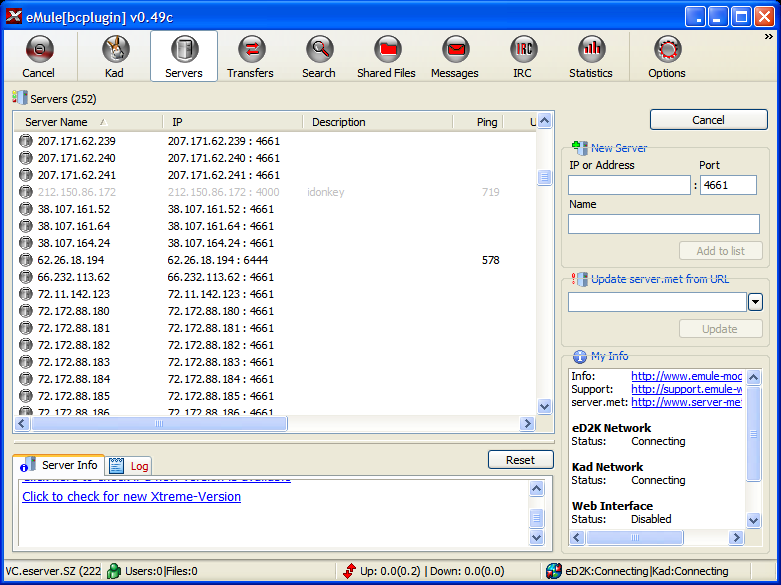
- Check whether connected to eMule servers: View the server list and logs to know server status. Only when the eD2K and Kad Networks show connected, the eMule plugin will work well.
<html><br /></html>

How to add new servers to eMule plugin?
- Solution I: eMule plugin→ Server→ right side “New Server”, enter server IP and port in the blank field and then click “Add list”. For example: 77.247.178.244:4242
- Solution II: eMule plugin→ Server→ right side“Update server.met from URL”, enter URL of a Server.met and then click “Update”. For example: http://upd.emule-security.net/server.met
Add port mapping to the eMule plugin
- A High ID means the listen port is open and freely accessible by other clients that are compatible with eMule.
- A Low ID means this port is blocked or cannot be reached. It's usually being displayed to users who have have either hardware firewalls (i.e. routers) or software firewalls (i.e. installed on their PC) standing between them and the Internet (blocking incoming connections). So usually, Low ID users have access to less download resources.
- How can users say good-bye to LowID?
- If you only have a modem and your PC uses a WAN public IP, making sure that eMule's listen port is open in the software firewall will get this condition solved. BitComet eMule plugin supports auto-configuration of the TCP/UDP port in the Windows Firewall. If you are using a third-party firewall, you'll need to open the listen port for the eMule plugin in the firewall settings, manually (i.e. create rules for both TCP and UDP protocols). 【Read Create Firewall Rules for BitComet】
- If you also use a router and therefore your PC uses a private LAN IP, additionally to making sure that eMule's listen port is open in the firewall on your PC you will have to open the same port in the hardware firewall on your router and perform port-forwarding.【Read BitComet Port Mapping】. While reading the port forwarding guide, make sure that you acknowledge that this time you'll be forwarding eMule's listen port (i.e. you will need to create an additional separate rule or set of rules for the eMule listen port, not modify those already in place for BitComet's listen port).
<html><span style=color:Teal>Note:</span></html> Please make sure the listen port on the eMule plugin settings page is the same as the one you set in Options-> eMule, or else the latter will override the former.
Other settings of the eMule Plugin
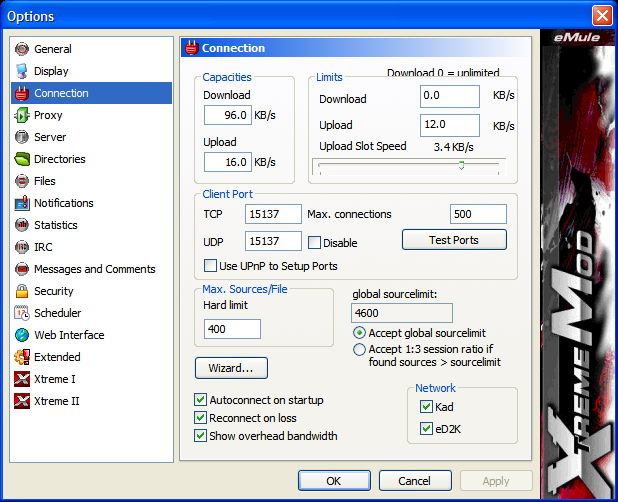
- Connection: You can limit the download rate, upload rate rate, enable UPnP port mapping and change several protocol and connection related settings on this page. It may be a good idea (if you intend on using the eMule plugin on a regular basis - i.e. leaving it always enabled in BitComet) to limit the maximum upload rate to some percentage of the Global Upload Rate set in BitComet (on the Connection page). That way you'll make sure it won't interfere with your BitTorrent upstream traffic.
<html><br /></html>

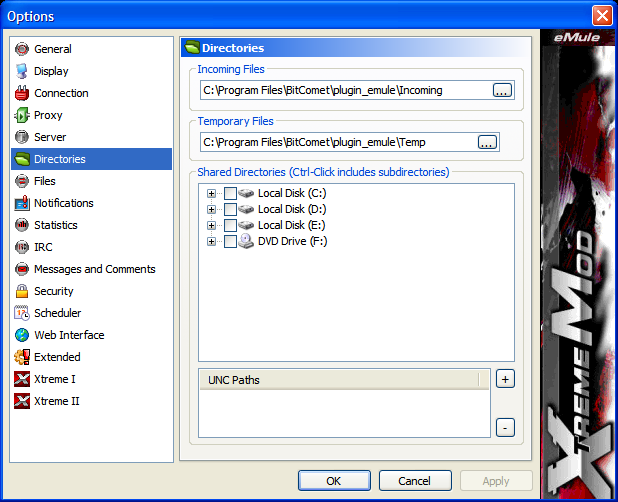
- Set eMule plugin download directory and share directory: This setting is only valid when using eMule plugin to download an eMule task (i.e. when using the eMule plugin like a standalone eMule client and directly searching and downloading from the eDonkey/Kad Networks). The download directory for eMule tasks is by default set under the BitComet installation folder tree. You may want to change that to a different drive (perhaps under the BitComet download directory) if you intend on using eMule as a standalone client as well. This setting won't affect downloads which are imported from BitComet.
<html><br /></html>

Please refer to Options-> eMule if you need to check other settings not described in the above text.
Accelerating downloads with the eMule plugin
How and when does the eMule plugin work to aid BitComet in downloading BitTorrent tasks?
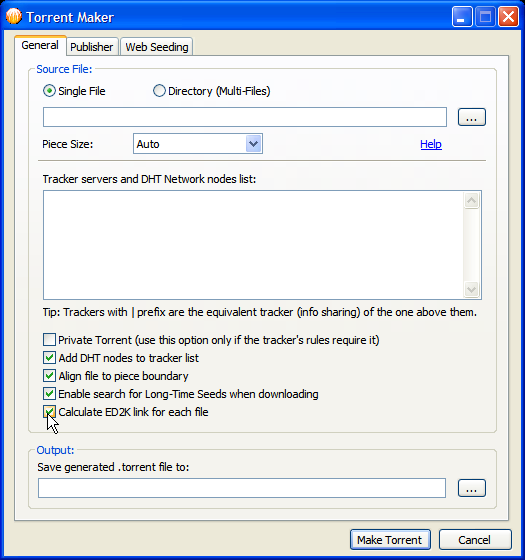
- You can make sure that a torrent will have eDonkey support if when you make a .torrent file you check the option “Calculate ED2K link for each file” in the torrent maker dialog. This way any BitComet client can use that link to search the eDonkey/Kad Network for sources containing the files of that torrent, additionally to the BitTorrent Network.
(Note that this does not guarantee that any other peer will actually find those files on the eDonkey/Kad Networks but will enable other BitComet peers to search for them there.)
<html><br /></html> - When BitComet is downloading a torrent, upon the BT task creation time (if the “Search for eMule sources” option is enabled on the pop up Properties page of the task) BitComet will search for ED2K Links for the files of that torrent and if it will find any it will import those downloading tasks into eMule plugin as well. The eMule plugin may be very useful to complete your download by finding sources for the torrent's files in the ED2K network, especially, if there are no seeds in the BitTorrent Network so that you can complete your download.
Tasks downloaded from ED Network through eMule plugin which are initiated in BitComet, will show as “bitcomet_imported” in eMule and will share the same download directory with the BitComet BT task. The plugin downloads data from the ED2K Network while downloading the BT task using BitComet and also, it uploads to the ED2K Network when further seeding the BT task.
<html><br /></html>


<html><span style=color:Teal>Note:</span></html> The eMule plugin, “Transfer” panel, shows the category of files “_bitcomet_imported” on a different tab. All tasks imported from BitComet will be listed here. Tasks downloaded by eMule only can only be seen in the “All” tab.

<html><br /></html>
Search an ED2K Link for a file
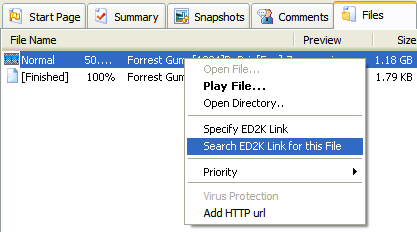
For torrents that do not support eDonkey download (i.e. for which at the creation time of the task BitComet didn't find any ED2K Link), you can try to manually enable download from eDonkey Network by using the “Search ED2K Link for this file” option in the Files' tab right-click context menu of each file for that torrent.
If after searching BitComet finds a download source for any of the files, it will add it as an imported task in eMule and attempt to download concurrently from the eDonkey/Kad Networks as well. For detailed steps on how to do that look below.
- Select a BT task in BitComet's Task List, then select the Detailed Info Pane→Files tab and right click on any of the files, then in the context menu click on the “Search ED2K Link for this file” menu entry.
<html><br /></html> - An “ED2K Link search” dialog pops up; confirm the keywords (or you can modify them first to enhance the search string) and click on “Search”. 【If search is not available, please check whether eMule server is connected】
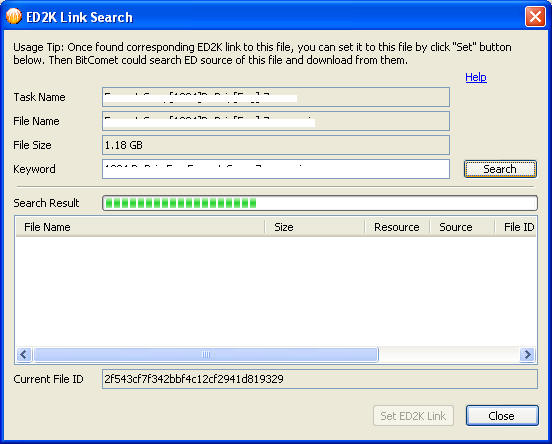
<html><br /></html> - View the search progress bar and when all of it is filled up, it means the search is finished. The found file will be listed in under the “Search result” area. Double-click the entry and the ED2K link will be automatically added to “Current File ID” or click on “Set ED2K link”.
- When all is done, click “Close” to exit the dialog. Stop and restart the BT task and BitComet will try to connect to sources from the eDonkey/Kad Networks to speed up/complete your download.


Using eMule plugin to download an ED task
This pertains using the eMule plugin as a standalone eMule client for downloading/sharing activities on the eDonkey/Kad Networks.
- Click on the right upper corner of the eMule plugin Toolbar, click “Tool” and select “Paste ED2K link…” in the drop-down menu.

<html><br /></html> - In the pop up dialog, paste the ED2K Link and click “Download”.

- You can also use the search engine embedded in the eMule client to search on the ED Network for resources using their filenames.


